
WordPress Website Not Showing on Google? Here’s How to Fix It
October 29, 2026
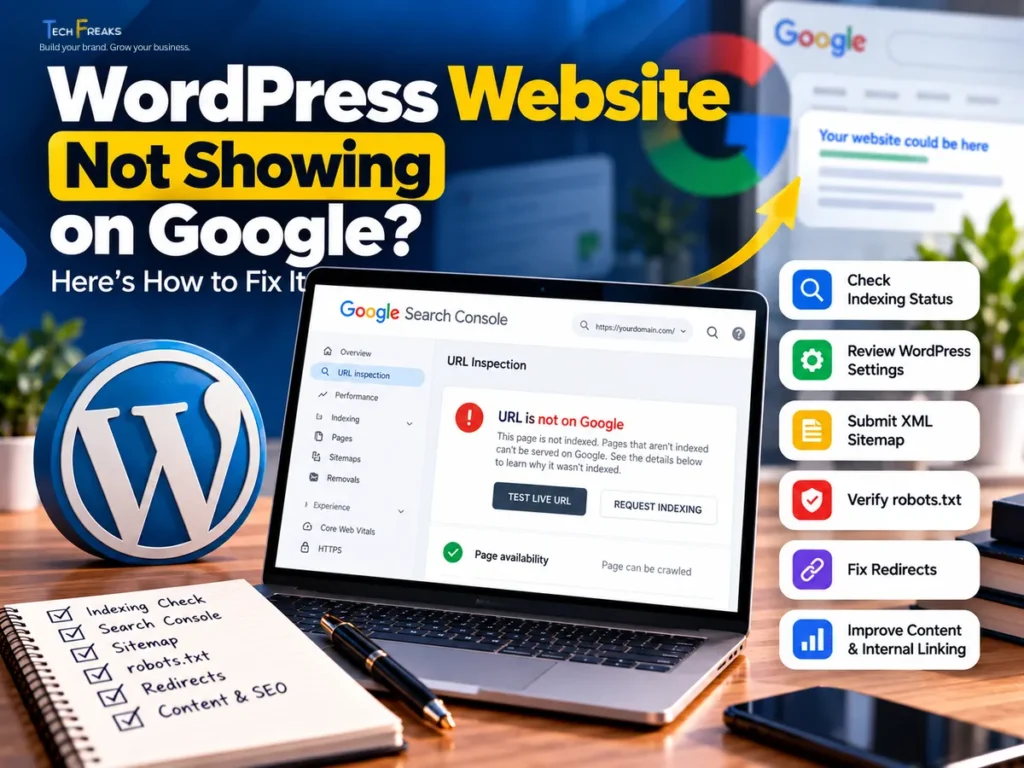
You’ve launched your WordPress website, added your services, and made sure everything looks professional. But when you search for your business on Google, your website is nowhere to be found.
This can be frustrating, especially if you’re running a business in Karachi, Lahore, Islamabad, or elsewhere in Pakistan and hoping to attract customers through organic search.
The good news is that many WordPress indexing problems can be investigated using free tools.
However, there’s an important distinction: a website that Google hasn’t indexed is different from a website that is indexed but doesn’t rank well for your target keywords.
Before making changes, you need to identify which problem you’re facing.
This guide explains how to check your website’s indexing status, understand common technical issues, and take practical steps to make your content accessible to Google.
1. Check Whether Google Has Indexed Your Website
Before troubleshooting WordPress settings, confirm whether your website is actually missing from Google’s index.
You can start with a simple Google search:
site:yourdomain.com
Replace yourdomain.com with your actual website address.
If Google displays some of your pages, it suggests that at least part of your website has been indexed.
However, the site: search operator isn’t a complete or reliable report of everything Google has indexed.
For a more accurate diagnosis, use Google Search Console.
Open your verified website property and use the URL Inspection tool.
Enter the full address of an important page, such as your homepage or primary service page.
Google may report:
- URL is on Google: The page is indexed and eligible to appear in relevant search results, although visibility isn’t guaranteed.
- URL is not on Google: The page isn’t currently indexed. Review the detailed reason.
- URL is not available to Google: There may be an accessibility or indexing restriction.
You can also use Test Live URL to check the page’s current accessibility.
If Google has already indexed your homepage but you’re not ranking for a competitive search such as “web design company in Karachi,” the issue may be search relevance, content, or competition rather than indexing.
2. Check WordPress Search Engine Visibility Settings
WordPress includes a setting that can discourage search engines from indexing your website.
This is useful during website development, but it can cause problems if the setting remains enabled after launch.
To check it:
- Log in to WordPress.
- Open Settings → Reading.
- Find Search engine visibility.
- Make sure Discourage search engines from indexing this site is unchecked.
- Save changes if necessary.
This setting should normally be disabled for a public business website that wants organic search visibility.
Also review the indexing settings in your SEO plugin, if you use one.
A plugin can apply a noindex directive to individual pages, post types, or categories.
If an important service page has been accidentally marked noindex, Google may be instructed not to include it in search results.
Tip: Never remove indexing restrictions from private, confidential, or intentionally unpublished content merely to increase the number of indexed pages.
3. Verify Your Website in Google Search Console
Google Search Console is a free tool that helps website owners understand how Google discovers, crawls, and indexes their content.
If you haven’t connected your WordPress website, visit Google Search Console and add your property.
A Domain property can cover both WWW and non-WWW versions, along with supported protocols and subdomains.
Domain verification generally requires adding a DNS record.
After verification, open the Indexing → Pages report.
This report separates indexed pages from pages Google hasn’t indexed and lists reasons that may need your attention.
Some common statuses include:
Discovered – currently not indexed
Google knows about the URL but hasn’t crawled it yet.
Crawled – currently not indexed
Google has visited the page but hasn’t added it to the index.
Excluded by ‘noindex’ tag
Google detected an instruction not to index the page.
Page with redirect
The URL redirects elsewhere, so Google may index the destination instead.
Not every excluded URL represents a problem.
For example, duplicate pages and intentional redirects may be excluded correctly.
Prioritize the pages that actually matter to your business, including your homepage, core services, and useful articles.
4. Check Your WordPress XML Sitemap
An XML sitemap helps search engines discover important URLs on your website.
WordPress includes built-in XML sitemap functionality.
On a standard WordPress installation, the sitemap is commonly available at:
https://yourdomain.com/wp-sitemap.xml
Some SEO plugins generate a different sitemap, often:
https://yourdomain.com/sitemap_index.xml
Check the sitemap location used by your website rather than assuming both are active.
Open the sitemap in a browser and verify that it contains valid links to the pages you want search engines to discover.
Then open Google Search Console and navigate to Indexing → Sitemaps.
Submit the correct sitemap URL.
If Search Console reports that it couldn’t fetch the sitemap, check whether the file is publicly accessible and whether the server returns a successful response.
Also check for redirects, firewall restrictions, and caching issues that may interfere with Googlebot.
A sitemap is a discovery aid. Submitting it doesn’t guarantee indexing or improve rankings automatically.
If you see a browser warning about XML styling or XSLT, that warning alone doesn’t prove that the XML sitemap is invalid. Check the actual sitemap response and Search Console’s report.
5. Review Your robots.txt File
A robots.txt file tells compatible web crawlers which website paths they are allowed to request.
It is normally accessible at:
https://yourdomain.com/robots.txt
For WordPress websites, a basic configuration may look like this:
User-agent: *
Disallow: /wp-admin/
Allow: /wp-admin/admin-ajax.php

Sitemap: https://yourdomain.com/wp-sitemap.xml
This example restricts the WordPress administration directory while leaving public pages available for crawling.
However, the correct file depends on your website’s structure and requirements.
Check that your configuration doesn’t accidentally block important pages.
For example:
User-agent: *
Disallow: /
This instructs compliant crawlers not to crawl any pages on the website.
Also remember that robots.txt is not the appropriate mechanism for guaranteeing that a page stays out of search results.
To prevent indexing, a properly implemented noindex directive is generally more appropriate. Google must be able to access the page to read that instruction.
What if robots.txt isn’t updating?
Some WordPress websites generate a virtual robots.txt file when no physical file exists.
Caching systems such as LiteSpeed Cache or a content delivery network may also serve an older version.
If your updated file isn’t visible, verify the website’s actual document root, any physical robots.txt file, and the response returned by your server.
Purge the relevant caches if necessary.
Avoid installing multiple plugins that compete to manage the same configuration.
6. Fix WWW, Non-WWW, and HTTPS Issues
A website may be accessible through multiple addresses:
http://yourdomain.comhttps://yourdomain.comhttps://www.yourdomain.com
These addresses are technically different URLs.
For most small business websites, it makes sense to choose one preferred HTTPS version and redirect alternative versions to it.
For example, a business using:
could permanently redirect its WWW version to the same non-WWW address.
A permanent redirect helps visitors and search engines reach a consistent destination.
Check the canonical URL declared by your important pages as well.
A canonical tag tells search engines which version you prefer when substantially similar content is available at multiple URLs.
Google may consider several signals when selecting the canonical version, including redirects, sitemap entries, and canonical tags.
Do not change WordPress’s Site Address or WordPress Address settings without checking the installation structure first. Incorrect changes can interrupt access to your website.
If you are unsure how to handle redirects or hosting configuration, consult your hosting provider or a qualified developer.
7. Check for Broken Pages and Server Errors
Google needs to retrieve your content successfully before it can evaluate it for indexing.
A page that returns a 404 Not Found, 500 Internal Server Error, or another unexpected error may not be indexed as intended.
Use Search Console’s URL Inspection tool to test important pages.
Check that they load correctly for visitors without requiring a login.
For WordPress websites, common causes of accessibility problems include:
- Incorrect permalink settings
- Deleted or moved pages without appropriate redirects
- Plugin or theme conflicts
- Server configuration problems
- Firewall or security rules blocking legitimate crawlers
- Temporary hosting failures
If you’ve recently changed permalink structures, verify that links to your homepage, services, and articles still work.
For example, changing a WordPress service-page address without a redirect could cause visitors following the old link to encounter a 404 error.
Where appropriate, redirect the old URL to the most relevant replacement.
Avoid redirecting every deleted page to the homepage, particularly when no equivalent content exists.
A website’s technical setup should make important information reliably accessible.
TechFreaks offers Web Design & Development services for businesses planning or improving their websites.
8. Understand Why a Page May Be Crawled but Not Indexed
One of the more confusing Search Console messages is:
Crawled – currently not indexed
This means Google has visited the page but hasn’t currently included it in the index.
It doesn’t necessarily mean something is technically broken.
Google may decide not to index a page for several reasons, including the usefulness, uniqueness, or relevance of its content.
Review the page from the perspective of a potential customer.
Does it explain a genuine service or answer a useful question?
Is the information original and relevant to your audience?
Does it offer anything meaningful beyond what your other pages already provide?
For example, an IT company in Karachi might publish a dedicated page explaining office network installation, including its scope, intended customers, implementation process, and enquiry requirements.
That is more useful than publishing multiple nearly identical pages that only replace the city name.
Avoid copying service descriptions from competitors or generating large numbers of repetitive pages simply to target keywords.
If the content is useful, technically accessible, and properly linked, further crawling and indexing decisions still remain with Google.
Repeatedly requesting indexing is not a substitute for improving the page.
9. Improve Internal Linking and Website Navigation
Google discovers many pages by following links.
If an important service page is not linked from your navigation, services overview, or other relevant pages, it may be harder for visitors and search engines to find.
For a business website, use a logical structure.
Your homepage can link to the main services.
The services overview can link to individual service pages.
Relevant blog articles can link to services that help visitors solve the problem being discussed.
For example, an article about website indexing can naturally link to SEO services.
Use descriptive link text that makes the destination clear.
Avoid linking every occurrence of the same keyword or adding unrelated links merely for SEO.
WordPress users should also check that mobile navigation works correctly and that important links are available across devices.
A clear website structure supports both usability and content discovery.
10. Target Relevant Searches in Your Service Areas
Getting indexed is only the first stage of building organic search visibility.
Once your pages are eligible to appear in search results, the content must still be relevant to what potential customers are searching for.
For example, businesses may look for:
- WordPress website development in Karachi
- SEO services for small businesses in Pakistan
- Website redesign services in Lahore
- Business website development in Islamabad
These examples describe relevant search intents, not verified keyword volumes or rankings.
If your company genuinely serves a particular area, explain that availability clearly.
A service page can describe the work you provide, the types of customers you support, and how customers in that location can contact you.
Avoid creating near-identical location pages or claiming offices in cities where your company has no physical presence.
For businesses eligible for a Google Business Profile, accurate business information can also support local discovery.
However, a Business Profile isn’t required for Google to index your website.
11. Request Indexing After Fixing Important Issues
Once you’ve corrected an indexing problem, return to Google Search Console.
Open URL Inspection and enter the affected page.
Select Test Live URL to check whether Google can access the current version.
If the page is eligible, use Request Indexing for important pages that need another review.
For larger groups of new or updated pages, maintain an accurate sitemap.
Do not submit the same unchanged pages repeatedly.
Indexing can take time, and a successful request doesn’t guarantee that Google will include the URL.
Monitor Search Console for updates rather than assuming a problem is unresolved simply because a page doesn’t appear immediately.
Common WordPress Indexing Problems and Their Fixes
| Problem | What to check |
|---|---|
| Entire website not indexed | WordPress Reading settings and access restrictions |
| One service page missing | URL Inspection, noindex, canonical URL, and content |
| Sitemap cannot be fetched | Correct sitemap URL, HTTP response, firewall, caching |
| robots.txt shows old rules | Physical file, hosting directory, CDN and origin cache |
| WWW and non-WWW behave differently | Redirects, canonical settings, and hosting configuration |
| Crawled but not indexed | Content value, duplication, and relevance |
| Discovered but not indexed | Internal links, discovery, server availability |
| Website is indexed but ranks poorly | Search intent, content, competition, and SEO strategy |
The key is to investigate the actual cause before changing your website.
Frequently Asked Questions
Why is my WordPress website not appearing on Google?
Possible reasons include indexing restrictions, crawling problems, incorrect canonical settings, broken pages, limited content usefulness, or simply insufficient time since launch. Google Search Console is the best starting point for checking a specific URL.
How long does Google take to index a new WordPress website?
There is no guaranteed timeline. Some pages may be indexed quickly, while others take longer or are never indexed. Google recommends allowing time after submitting an indexing request or sitemap before concluding that something is wrong.
Is a sitemap required for Google indexing?
No. Google can discover pages through crawlable links, even without a sitemap. A sitemap can help with discovery, particularly for new or complex websites, but doesn’t guarantee indexing.
Does robots.txt improve Google rankings?
No. A robots.txt file primarily controls crawler access. Correct rules can help prevent accidental crawling restrictions, but they do not directly increase rankings.
Can I fix WordPress indexing issues without buying an SEO plugin?
Yes. WordPress’s built-in settings, Google Search Console, the existing XML sitemap, and hosting controls are enough to diagnose or resolve many common problems. Some technical issues may require developer or hosting support.
My website is indexed but I am not getting enquiries. What should I do?
Review whether your pages target relevant search queries, clearly explain your services, and make it easy for visitors to contact you. Indexing, search visibility, and enquiry generation are different stages of the customer journey.
Final Thoughts
If your WordPress website isn’t appearing on Google, don’t immediately assume that you need a new theme, another plugin, or paid advertising.
Start by confirming whether the page is indexed.
Then review WordPress visibility settings, Google Search Console, your sitemap, robots.txt, redirects, and server accessibility.
Once technical problems are resolved, focus on publishing useful service information and making your website easy to navigate.
For businesses in Karachi and across Pakistan, a reliable website and clear organic SEO strategy provide a stronger foundation for long-term online visibility.
Need Help Fixing Your WordPress SEO?
At TechFreaks, we help businesses improve their websites through practical technical reviews, clear content planning, and search-focused improvements.
Whether you’re launching a WordPress website, investigating indexing problems, or improving an existing site, we can help you identify the next steps.
Explore our SEO Services, Web Design & Development, and Digital Marketing services.
Build your brand. Grow your business.
Chat with TechFreaks on WhatsApp